
Fundraise
For Team Solan
Join Team Solan and help make a real difference to families affected by cancer across the North East.
We call all of our supporters Team Solan - because every single person who fundraises, donates or gives their time becomes part of something bigger. Together, we’re supporting our Warriors when they need it most.
Whether you’re taking on a challenge, organising an event, or simply bringing people together, your fundraising helps us provide vital emotional, practical and financial support to children, adults and families facing cancer and bereavement.
Ways to Fundraise:
There’s no one way to fundraise - it’s about doing something that works for you.
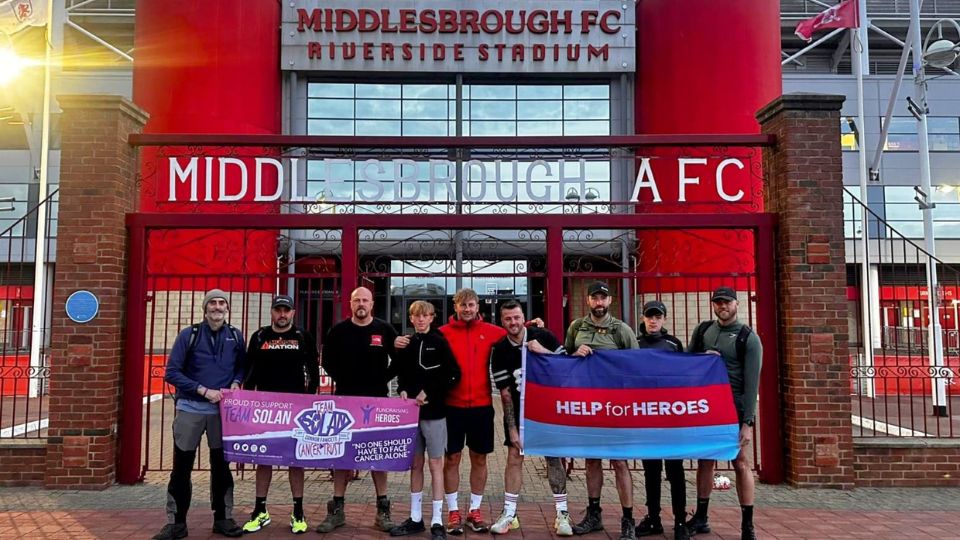
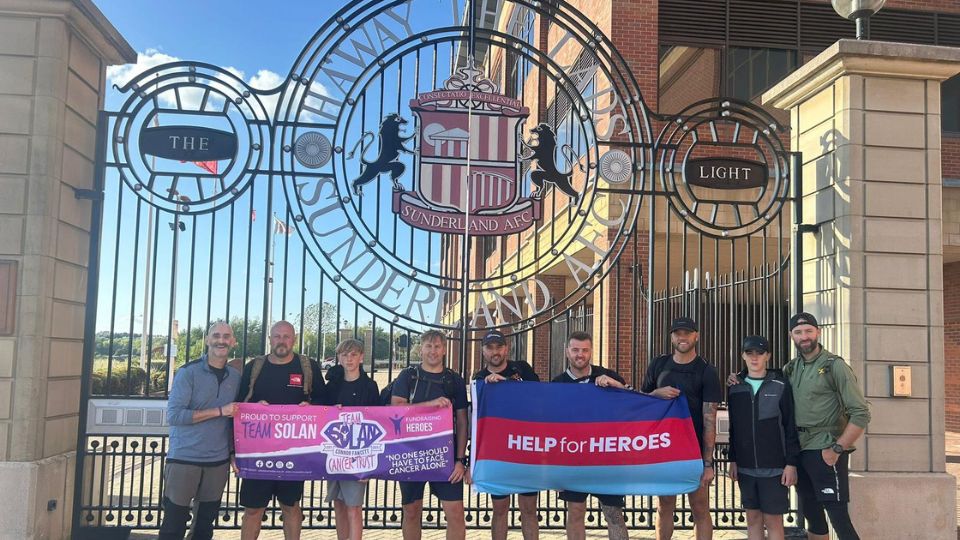
- Take on a challenge (marathon, run, skydive, charity walk)
- Organise an event (quiz night, raffle, music night, coffee morning)
- Fundraise as a team with friends, family or colleagues
- Host something in your local community, school or workplace







Every pound raised helps us
Provide counselling and emotional support

Deliver complementary therapies and wellbeing services

Offer financial help for essentials like food, bills and travel
Support families through diagnosis, treatment, recovery and bereavement

Start Your Fundraiser
We use the Enthuse platform to manage fundraising and donations, making it simple for you to get started.
Click the “Fundraise for Us” button and follow the step-by-step instructions to create your funding page and start raising money.
You can personalise your page, share your story, and track your progress as donations come in.

Fundraising as a Team
Fundraising with others is a great way to make an even bigger impact.
Create a team with friends, family or colleagues and take on a challenge together - whether that’s a sponsored event, workplace fundraiser or community activity.
Together, you’ll raise more and create something really special.
We’re Here to Help
We’ll support you throughout your fundraising journey - from setting up your page to promoting your event and celebrating your success. If you need help or have any questions, just get in touch with our team.
Blank
Creating your fundraising page
Just click the Fundraise for us button and follow the steps to sign up.
If the event/appeal has a Fundraise for us button, that means you can sign up without needing to a register a place(or maybe you’ve done it somewhere else already!). You will be taken through the following steps:
--
Step 1 - Your Target
1. To enter a new target, change the amount in the How much would you like to raise? field.

2. Click Continue.
--
Step 2 - Profile photo
1. If you already have a photo and want to replace it, click Remove.

2. To add a photo, click either Facebook photo or Upload photo. The Facebook photo option will use your Facebook profile photo.

3.Click Continue.
--
Step 3 - Background photo
1. If you already have a background photo and want to replace it, click Remove.

2. If you want to use the default background photo the charity has chosen for fundraisers, click Use default.
3. To upload your own background photo, click Upload photo.

4. Click Continue.
--
Step 4 - Tell your story
1. To change the title of your fundraising page, enter the new title in the Your campaign title field.

2. To change or add to the text that appears on your fundraising page, enter text in the Your story field. You can also include images, video, and links.

3. Click Continue.
--
Step 5 - Customise your page link
1. If you want to change the link for your Fundraising page, edit the text in the Page link field.

2. Click Continue.
--
Step 6 - How can we contact you?
1. Select whether you want to receive communications from Team Solan.

2. Click Continue.
--
Step 7 - Spread the word
1. Click Share to share your fundraising page on Facebook.
2. Click Twitter to share your fundraising page on Twitter.
3. Click No thanks to continue.
--
Step 8 - Did you know?
1. Click Finish!.

Editing your page
Edit your fundraising page to personalise your fundraising target, profile photo, banner image, or content, so your supporters know exactly who they're donating to and how much the donation means to you.
You can do this by logging into the Enthuse platform, or if you have a fundraising page tied to an Event you had to register for, you can head straight to the Event Page to login with your order number.
Logging in and editing your page with an Enthuse account:
1. Sign in to the platform: https://fundraise.enthuse.com/login#!/

2. Select Manage > My Fundraising Pages in the Enthuse menu.

3. Click the Cog icon > Edit on the same row as the fundraising page.

Editing Step 1 - Your Target
1. To enter a new target, change the amount in the How much would you like to raise? field.
2. Click Continue.
--
Editing Step 2 - Profile photo
1. If you already have a photo and want to replace it, click Remove.
2. To add a photo, click either Facebook photo or Upload photo. The Facebook photo option will use your Facebook profile photo.
3.Click Continue.
--
Editing Step 3 - Background photo
1. If you already have a background photo and want to replace it, click Remove.
2. If you want to use the default background photo the charity has chosen for fundraisers, click Use default.
3. To upload your own background photo, click Upload photo.
4. Click Continue.
--
Editing Step 4 - Tell your story
1. To change the title of your fundraising page, enter the new title in the Your campaign title field.
2. To change or add to the text that appears on your fundraising page, enter text in the Your story field. You can also include images, video, and links.
3. Click Continue.
--
Editing Step 5 - Customise your page link
1. If you want to change the link for your Fundraising page, edit the text in the Page link field.
2. Click Continue.
--
Editing Step 6 - Spread the word
1. Click Share to share your fundraising page on Facebook.
2. Click Twitter to share your fundraising page on Twitter.
3. Click No thanks to continue.
--
Editing Step 7 - Did you know?
1. Click Finish!.
Logging in and editing your Event fundraising page without an account
If you have registered for an event, you can log in to edit your fundraising page without having an Enthuse account.
To do this, click on 'View your fundraising page' in the second email you got after registering or head to the Event/Appeal page > Top-right hand corner menu > Login (see below).

Then, use your email address and the Order Number you received in your receipt email after registering.
Finally, click on Edit profile pic / Edit background / Edit display name / Edit story / Edit target to make changes to your page.

What to do when your fundraising is complete
If you've finished your fundraising - well done! 🎉
We are delighted to receive the donations that you've worked hard to raise.
Some more good news - we automatically transfer donations, so you don't have to do anything! 👌
You can close your fundraising page if you want to, by logging into your dashboard at enthuse.com (Team Solan may also do this for you). Here's how to do that:
Note: You won't be able to do this if you've registered for an event. Please contact us on support@enthuse.com.
-
Select Manage, and then My Fundraising Pages
-
Select the cog icon on the right hand side of the page (if you have multiple fundraising pages, make sure it's the one next to the page you want to close)
-
Select Close.

Adding offline donations
You can add an offline donation to your fundraising page if you’ve done some offline fundraising (e.g. a bake sale) and you want the money raised to be reflected in the total.
To add an offline donation to your fundraising page:
1. Sign in to the platform: https://fundraise.enthuse.com/login#!/

2. Select Manage > My Fundraising Pages in the Enthuse menu.

3. Click the Cog icon > Offline Donations.

4. Click Add new.

5. Enter the following information:
a) Name/Source: the name of the person donating or the source of the donation.
b) Donation amount: the amount of the offline donation.
c) Donation date: the date you want to associate with the offline donation.
d) Message (optional): any message you want to appear under the donation on your fundraising page.

6. Tick Anonymous donation to make the donation anonymous. The name/source of the donation will not be displayed on your fundraising page.

7. Tick Hide donation to hide the donation. The donation will not be included as an individual donation on your fundraising page. However, the donation amount will still be included in the total amount raised for your page.

8. Click Add Offline Donation.
Get Help With Fundraising
Have a question or need support? Get in touch and we’ll be happy to help.
This site is protected by reCAPTCHA and the Google Privacy Policy and Terms of Service apply.
